

Instructions to Apply for M.Tech(Online) Programme
Step 0: Please keep the following documents ready before you start filling the application form
- All marks sheet of 10th and 12th Standard, UG degree and PG degree (if any)
- Signed sponsorship letter from your organization in this format
- Please check your minimum eligibility for each stream before applying
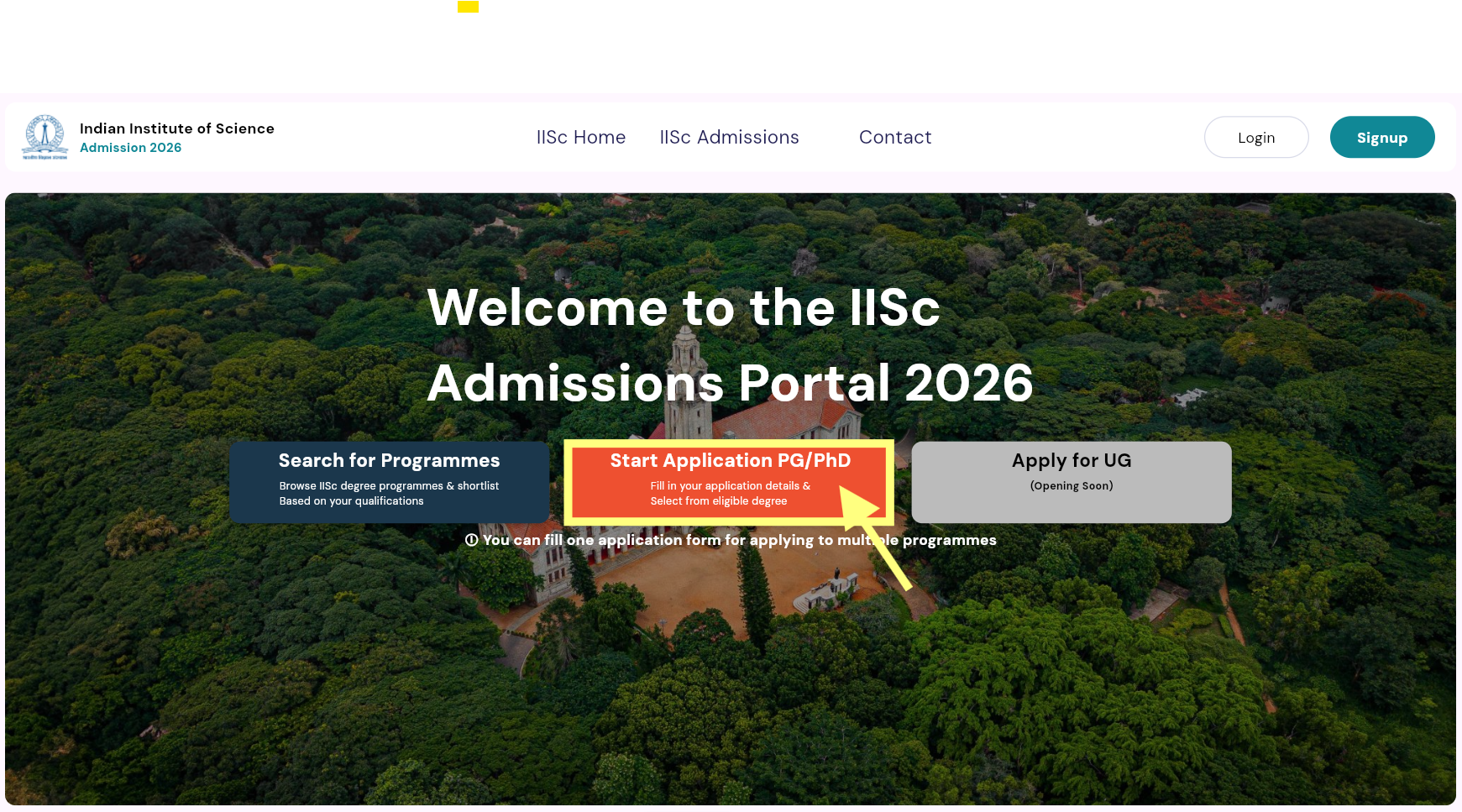
Step 1: Visit https://admissions.iisc.ac.in/ and select “Start Application PG/PhD” (Refer Img.01)
Img.01
Step 2: Register with your e-mail address and a password to start the online application process by creating a new user account.
Registration form for user account
- Name of the candidate: Enter your name as it appears in your degree certificate. It cannot be altered at a later stage.
- Country: Select your country of nationality.
- Mobile Number: Provide your mobile number to send OTP.
- Email Address: Enter your e-mail address.
*Note: The Email ID used to register cannot be changed later and will be used to send admissions related mail communications.
- Password: Choose password of your choice.
- Captcha: Enter the Captcha code as shown.
- Once you are done, click on “Send OTP” and enter the OTP received on your registered mobile number. After submitting the registration form, you will receive an email asking you to verify your email address by clicking on the link provided.
- After the e-mail address is verified, your account is set up.
Step 3: Log in to the website to fill the application form. You will need information about / from the following documents, so have them handy.
- Certificate / Mark sheets of 10th Std, 12th Std, UG Degree and (if applicable) PG Degree.
- A scanned image of your passport size photograph (to be uploaded in jpeg, gif, tiff, or png formats, 4 cms (150px) width x 4.8 cms (184px) height; file size should be below 500 KB)
- A scanned image of your signature (to be uploaded in jpeg, gif, tiff, or png formats, 8 cms (300px) width x 1 cms (40px) height; file size should be below 100KB).
- Payment Option :The application fee is Rs. 2000/- and this is non-refundable, even if you are not shortlisted to take written test. Modes of online payment available are – Net banking, Visa Card/Master Card, Debit/Credit Cards. Bank charges are extra.
- Soft copy of the singed sponsorship letter from your organisation (pdf only; below 500 KB). The letter should be in this format. Please contact your HR or point of contact from your organisation to obtain this letter.
The Application Form is divided into Eight sections, each appearing inside a separate tab
- You have to fill all the details (especially mandatory fields) within a given tab, click on “Save & Proceed” button to proceed to the next tab.
- Unless you fill the mandatory fields in a tab you will not be allowed to move to the next tab.
- On clicking the “Save & Proceed” button, if the browser does not take you to the next tab, it means some mandatory fields have not been filled (correctly), if this happens look for error messages which are displayed in red.
- Detailed instructions for the fields in each tab are given below.
TAB 1: Personal Details
- Name of the candidate: This is taken from your registration form. You cannot edit/change it now.
- Date of Birth: This is taken from your registration form. You cannot edit/change it now.
- Gender: Choose your gender by clicking on appropriate radio button. (For statisticals purpose only).
- Nationality: Choose your nationality by clicking on the appropriate radio button. (For statisticals purpose only)
- Parent Information: The applicant’s parents’ details are collected. (Non-mandatory field.)
- Social Category: Choose your category by clicking on the appropriate radio button. (For statisticals purpose only)
- Disability Status: Indicate whether the applicant is differently abled. (Please select Yes or No.)
- Special Category Information: Indicate whether the applicant belongs to the Kashmiri Pandit or Kashmiri Migrant category. (Please select Yes or No.)
- Contact Details: Provide your contact details by filling the text boxes and making the choice from the dropdown menu for ‘State’, Pincode, for phone number, prefix STD code: e.g., 08022939999.
- Email Address: This is taken from your registration form. You cannot edit/change it now.
- State of domicile: This will appear if you are Indian. Select state of domicile in the dropdown menu. (For statisticals purpose only)
- ABC ID/ APAAR ID: Enter your ABC/APAAR ID in the given text box.
Note:
On clicking the “Next” button, if the browser does not take you to the next tab, it means some mandatory fields have not been filled (correctly). If this happens, look for error messages which are displayed in red and correct them.
TAB 2: Educational Details
- 10th Standard details: Select the board you studied from the popup menu Fill in the school name and place. Enter the aggregate percentage of marks and the main subjects you studied.
- II PUC/12th Standard/ Diploma : Same as above. (If qualified in Diploma – should fill all the semester-wise/year-wise details in the columns provided)
- Undergraduate – Degree Details:
- Degree:Select your degree you are studying or completed.
- Specialization: Select your branch / Specialization.
- Status: Select Passed or Appeared.
- Year of passing: Select from the drop-down menu.
- University: Select from the drop-down menu. If not listed in the dropdown, choose “others” and specify below.
- Fill in the institution/college name and place.
- Semester-wise Marks:
- Percentage / GPA: Select appropriately. If GPA, then specify “out of”
- Undergraduate – other subjects: Fill the key subjects you have studied in each text boxes (Add upto 8 subjects)
Note:
On clicking the “Next” button, if the browser does not take you to the next tab, it means some mandatory fields have not been filled (correctly). If this happens, look for error messages which are displayed in red and correct them.
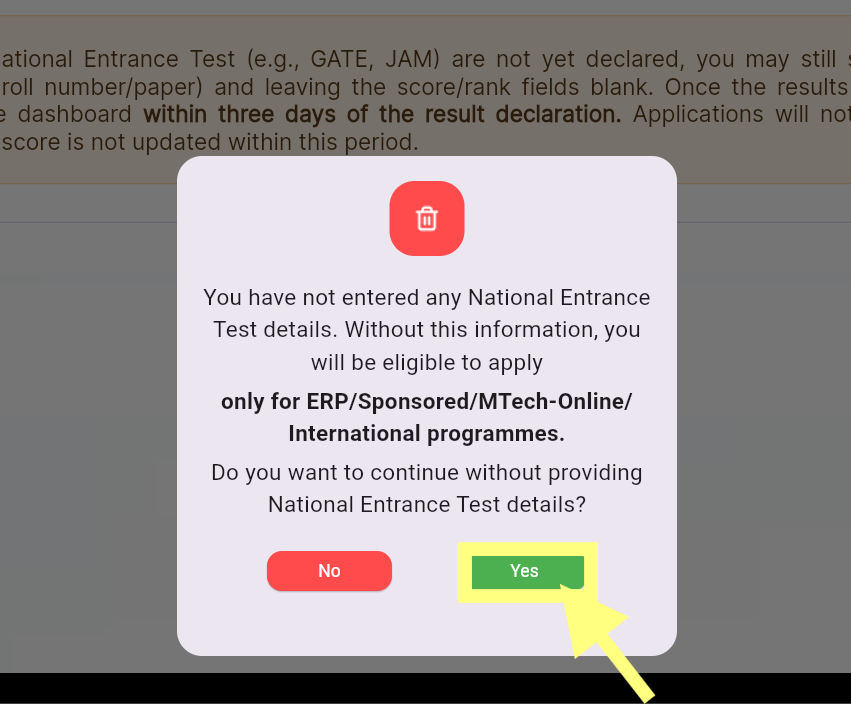
TAB 3: Mode of Entry : M.Tech. (Online) applicants may skip this tab. Click Next; a message will appear stating, “Do you want to continue without providing National Entrance Test details?” Please select “Yes.” (Refer to Img.02)
Img.02
TAB 4: Awards & Achievements: Applicants may provide details of their publications, conferences and workshops attended and awards & certifications. (These information are optional)
TAB 5: Employment Details:
- Are you applying for ERP/Sponsored/MTech-Online Programmes? Select “Yes”
- Sponsoring Organisation details: Please provide Name of the organization, organization type, office address, pin code.
- Employment Details: Please provide designation, employment duration, Job description, HR Contact details. Kindly enter the employment details in the field provided along with period and HR details. Fill in details of all your fulltime employment experience. Omit internships performed during your degree programs.
*Note: If your total experience is less than 730 days as on 01 August 2026 then you cannot proceed further in the application process.
- Additional Employment Details: In case you have prior work experience; after completing the sponsoring company details, you may provide the employment details of your previous organization (if any). This section is optional.
TAB 6: Choose Preference:
- Please search for “MTech (Online)” programmes in the search tab. Subsequently, only the eligible MTech (Online) programmes under the IKEN division (based on the educational qualification provided) will appear.Ensure that the selected programme falls under the MTech (Online) category, and then click “Add to Cart.”(Refer to Img.03).
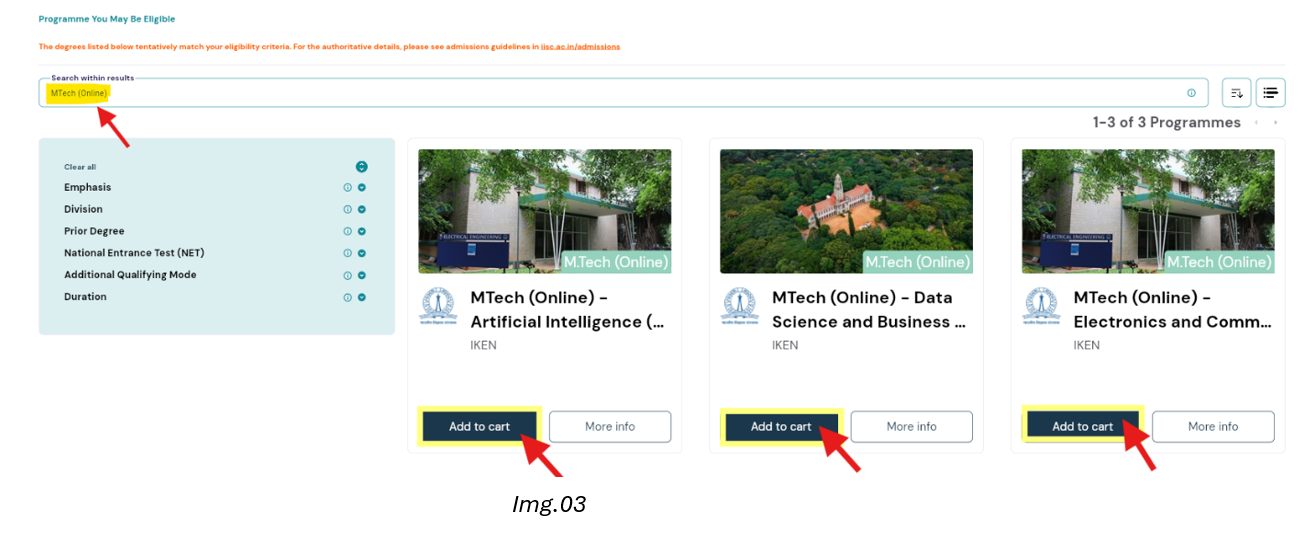
*Note: You may select up to two streams in the cart, re-order the programmes according to your preference and click on “Confirm Preferences” then click on “Next”.
TAB 7: Review Application form
- This page will display all details that you entered in the application as a draft PDF file. Please carefully review this document for completeness and correctness. This is what will be visible to the those who evaluate your application.
- If you notice any inaccuracies, please click on the relevant page in the top tabs to make the correction. Make sure to click Save and Proceed to ensure your changes are saved.
- Upload Phot and Signature (in *.jpg,*.jpeg,*.png and *.gif format ans size should be less than 500 KB).
- Please read the declaration carefully and provide your consent. At this stage, you may download the draft application.
*Note that no further edits will be permitted beyond this point.
- Once you are satisfied with the application PDF, click on “Pay fee to submit”.*
TAB 8: Pay and Submit: This will save the final application and take you to the payment gateway where the application fees are payable. Make the online payment.
- In case the payment fails, you must retry the payment from the main Application Status page. You will see a link next to your application number with an option to “Pay Application Fee”.
- IMPORTANT: The application has not been successfully submitted until the payment is complete.
Step 4: Upon successful completion of the payment process, you will be redirected to the dashboard page. Please upload the sponsorship letter issued by your organization and complete the application process.
Kindly write to office.iken@iisc.ac.in for any queries or technical issues.